Low bandwidth mode is one switch for when your connection is slow or costly: a satellite link offshore, 3G at anchor, a metered hotspot. With it enabled, OceanPulse stops downloading on its own. Everything it needs from the internet becomes a button with the download’s size on it, so you decide what the connection is spent on. It’s part of OceanPulse Elite.
Turn it on#
- Open the … Settings and Support menu and tap Account.
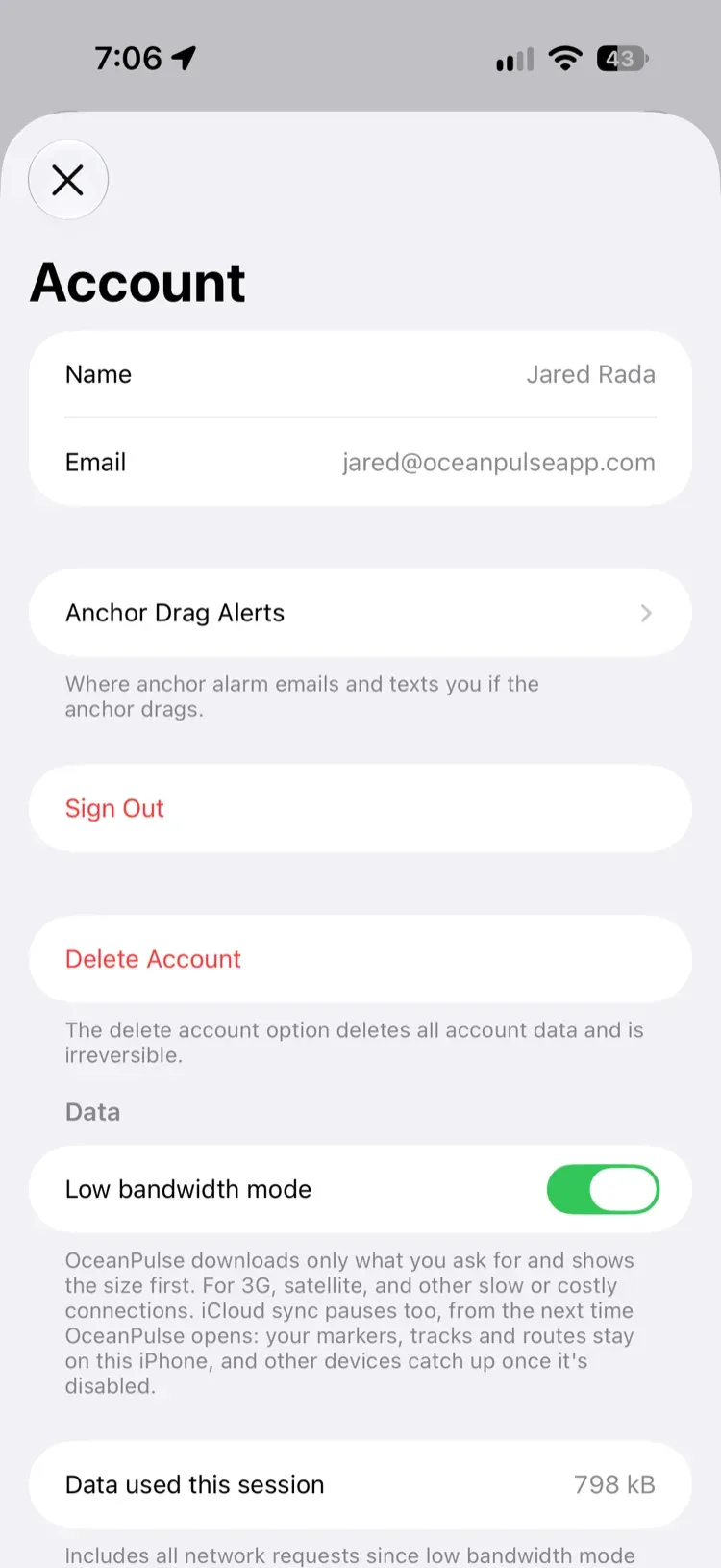
- Under Data, turn on Low bandwidth mode.
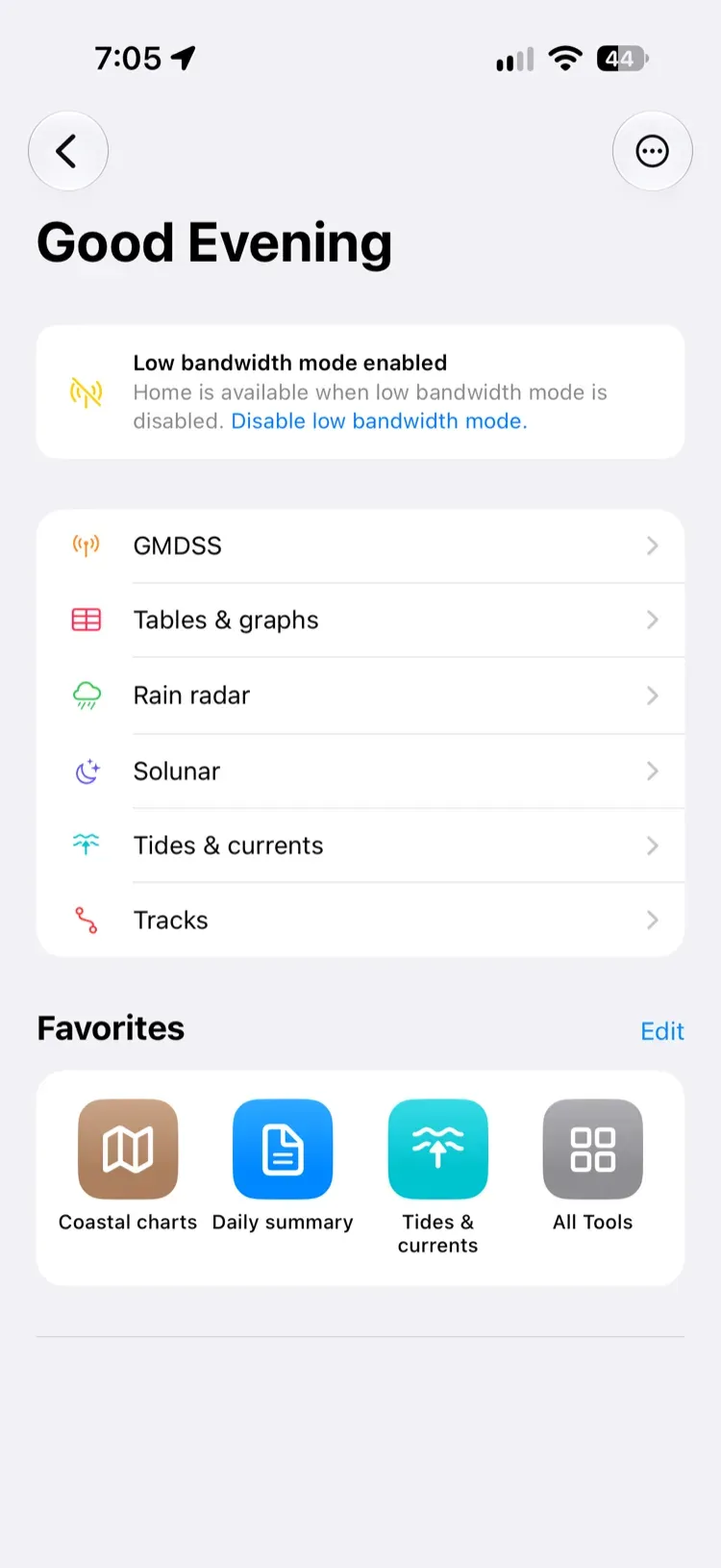
While it’s on, a yellow banner on each screen says Low bandwidth mode enabled, with a link to disable it.
Before you leave good signal, download what you’ll want with you: your offline charts above all. Going Offshore has a checklist, and what each download costs over a satellite link.
Live track sharing#
While you share a live track, your newest position goes up on the schedule you pick under Live track sharing, below the switch: Every hour, Every 4 hours, or Only when I ask, which holds your positions on the device until you send them. Account shows what the schedule comes to over a month. Your own recording keeps every position either way.
Data used this session#
With the mode enabled, Account shows Data used this session under the switch. It counts every request OceanPulse has made since you enabled the mode, and starts from zero each time you enable it. iCloud sync isn’t included, because iOS runs it outside the app.
iCloud sync#
iCloud sync pauses from the next time OceanPulse opens. Your markers, tracks, and routes stay on the device you made them on, and your other devices catch up once the mode is disabled and OceanPulse is opened again.
What changes, screen by screen#
| Screen | In low bandwidth mode |
|---|---|
| Home | Its cards are off. A row opens each of their sections, and your Favorites stay. |
| Marine Charts | Shows only your offline charts. Weather overlays, Conditions, and Nearby are off. |
| Daily Summary | Each place downloads its forecast when you tap Download. |
| Tables & Graphs | Tap Download Forecast for the place you’re reading. |
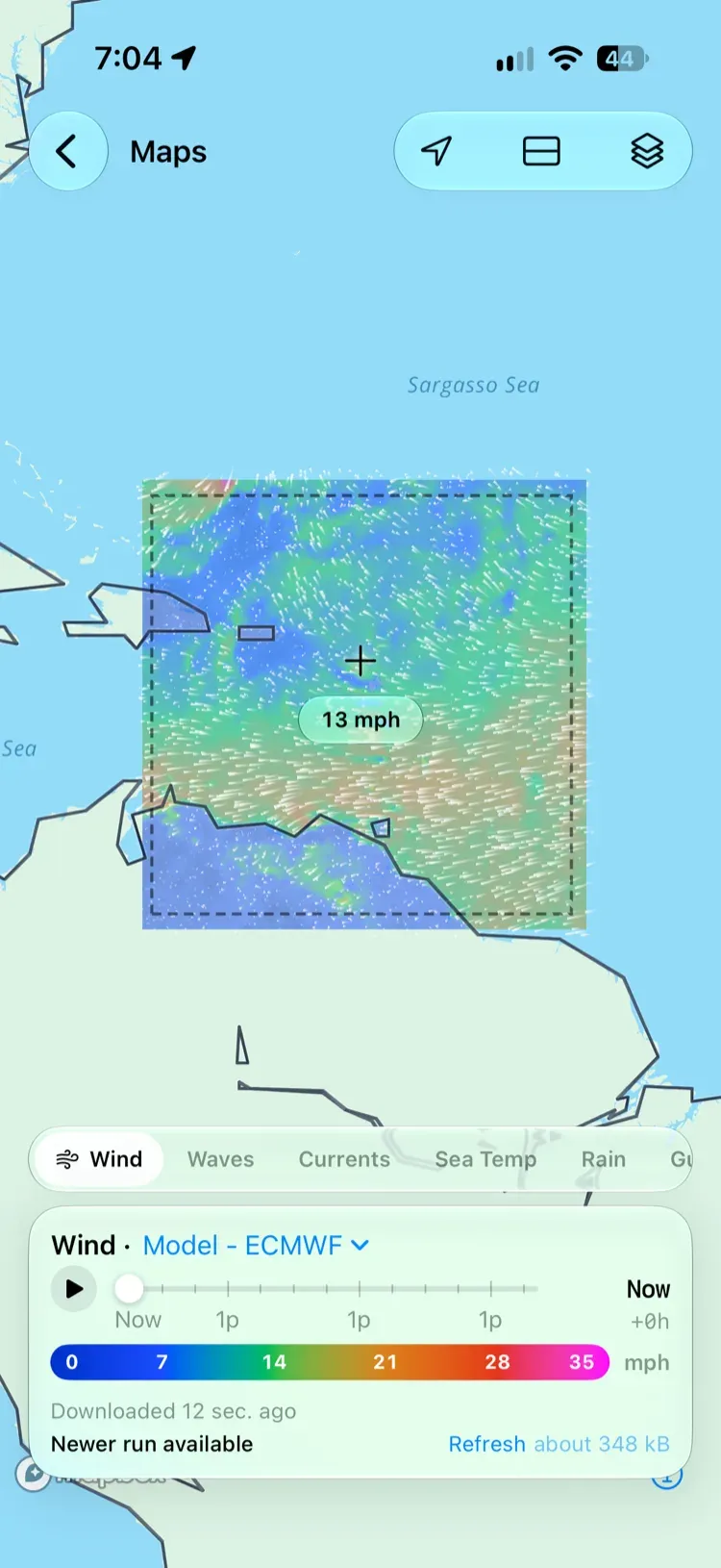
| Weather Maps | Frame an area and tap Download Weather for This Area. |
| Weather Replay | Frame an area and tap Download Past Weather for This Area. |
| Climate Trends | Frame an area and tap Download Climate for This Area. |
| Rain Radar and Satellite Clouds | Frame an area and download its last two hours. |
| GMDSS | Bulletins download when you tap Download, then Refresh. |
| Forecast Alerts | Your alerts download when you ask. Their notifications and emails still arrive. |
| Tides & Currents and Solunar | Work as always: both are offline. |
| Tracks | Recording works as always. A live track sends your newest position on the schedule you pick under Live track sharing in Account, or only when you ask. Following someone else’s is off. |
| Anchor Alarm | The alarm works as always. Sharing the watch is paused. |
| Weather Routing | Routes come back whole, with no race. |
| NMEA Connect | Works as always: it reads your boat’s own WiFi. |
Every download button shows its size before you tap it, and what you’ve downloaded says when it was downloaded.
Weather for an area#
In Weather Maps, frame the water you care about and tap Download Weather for This Area. Configure Download picks the layers and the forecast models to include; the size updates as you choose.
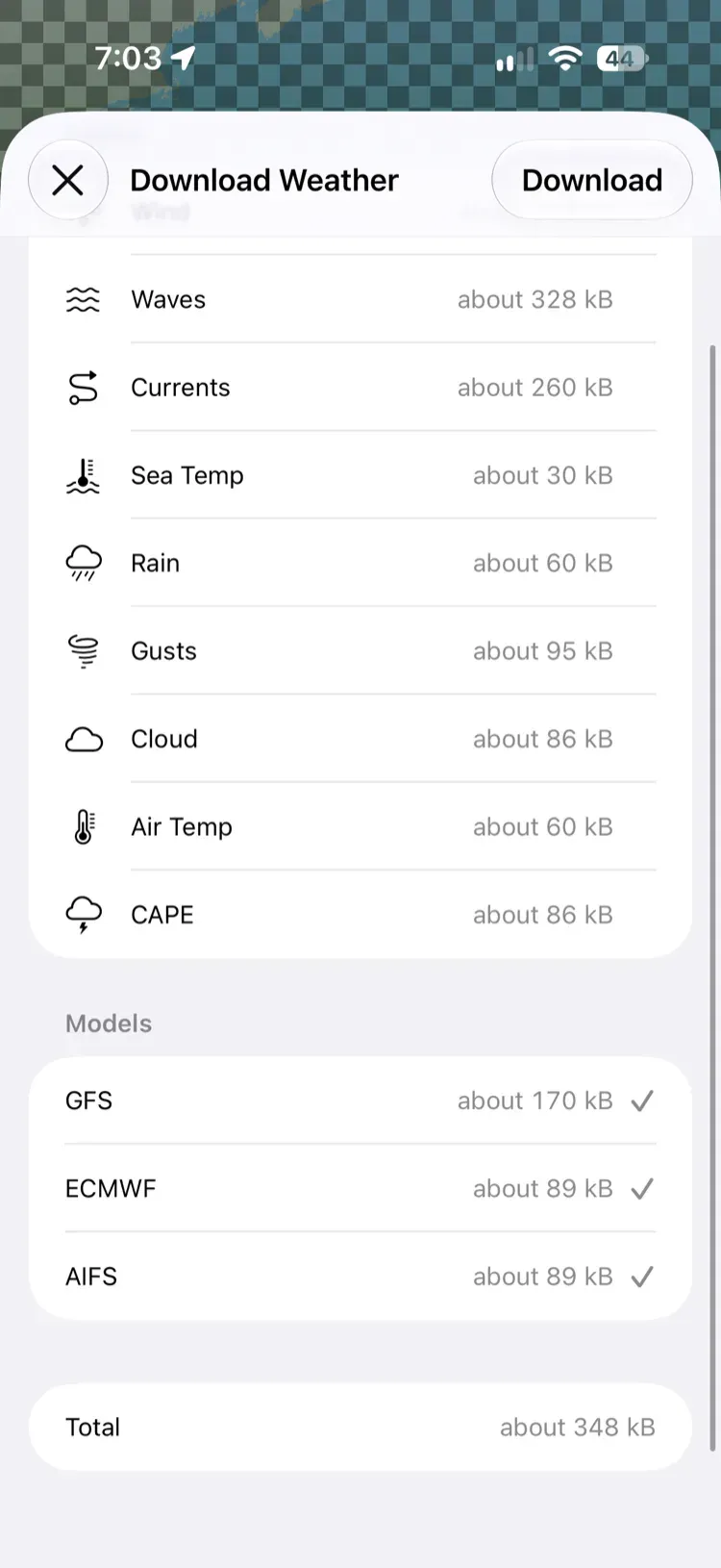
- A Weather Maps download holds the whole forecast, as far ahead as each model runs: up to 16 days. When a newer forecast run is out, the area says so, with Refresh. An area deletes itself once its forecast has passed.
- A Weather Replay download holds the week around the day on the map, and a Climate Trends download the months and layers you choose. Both stay until you delete them.
- Outside a downloaded area the map says Outside downloaded area.
Charts#
The chart draws only what you’ve downloaded, so nothing is fetched as you pan. Tap Download offline charts on the chart’s sheet to add more. Weather overlays are off on the chart; use Weather Maps to download weather for an area.
Anchor Alarm#
The alarm never needs the connection: it arms, sounds, snoozes, and ends on the device aboard as it always does. In low bandwidth mode that device stops sending its position, so your other devices and crew see Sharing paused in place of the live view. If the boat drags, the alarm still goes out to them, as long as the device aboard has a connection at that moment. Inviting crew and joining a watch are off while the mode is enabled.
Weather Routing#
Route shows about how much the passage will download. The routes come back when routing is complete, without the race animation, and the wind along the route you’re reading downloads afterwards. See Weather Routing.
Disable it#
Tap Disable low bandwidth mode on any banner, or turn the switch off in Account. OceanPulse goes back to keeping itself up to date, and iCloud sync resumes the next time the app opens.