Anchor Alarm watches your boat while you’re at anchor. Set a circle around the anchor; if the boat leaves it, the device watching sounds an alarm, even when it’s locked. Anchor Alarm is part of OceanPulse Elite.
Choose the device that stays aboard#
Any iPhone, or an iPad with GPS, can watch the anchor. Start the watch on the device you’ll leave on the boat: your iPhone, an older iPhone, or an iPad with cellular (Wi-Fi + Cellular models have GPS; Wi-Fi-only iPads don’t, so they can’t watch). Then take your phone ashore and follow the watch from there (see On your other devices).
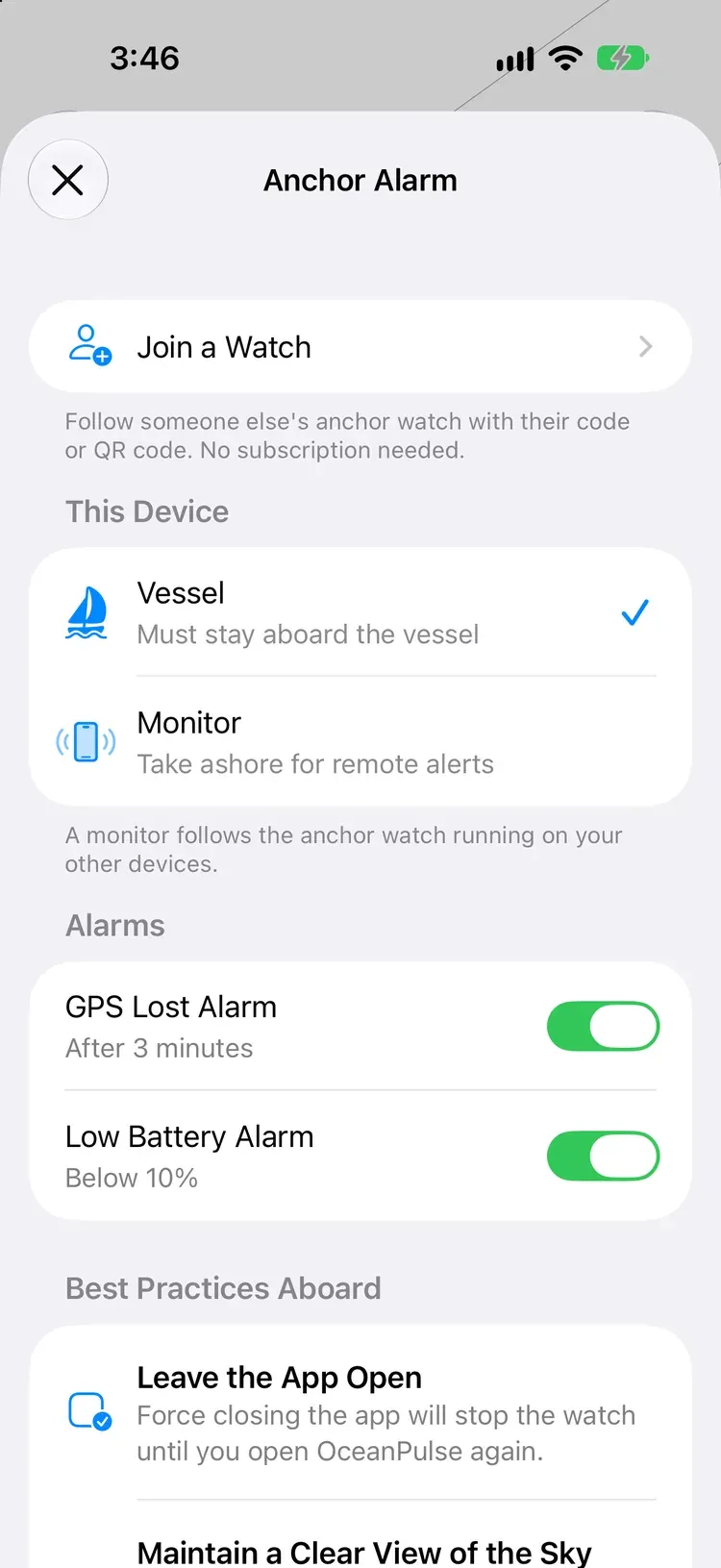
Tell each device its job in Anchor Alarm’s settings (the gear), under This Device:
- Vessel stays aboard and watches the anchor. It’s the only kind that can start a watch.
- Monitor goes ashore and follows the watch. It lists the watches running on your other devices and never starts one itself.
On the Vessel, Anchor Alarm needs your boat’s length to suggest a circle. The first time you start a watch, OceanPulse asks for the length if you haven’t set up your vessel yet. The circle can be as small as 5 m (16 ft).
Set the anchor#
In the sidebar, under Tools, tap Anchor Alarm, then choose how to start.
- Live Anchoring, as you anchor: tap Drop as the anchor goes down, then let out your rode. OceanPulse measures how far the boat falls back. Tap Set once the anchor holds.
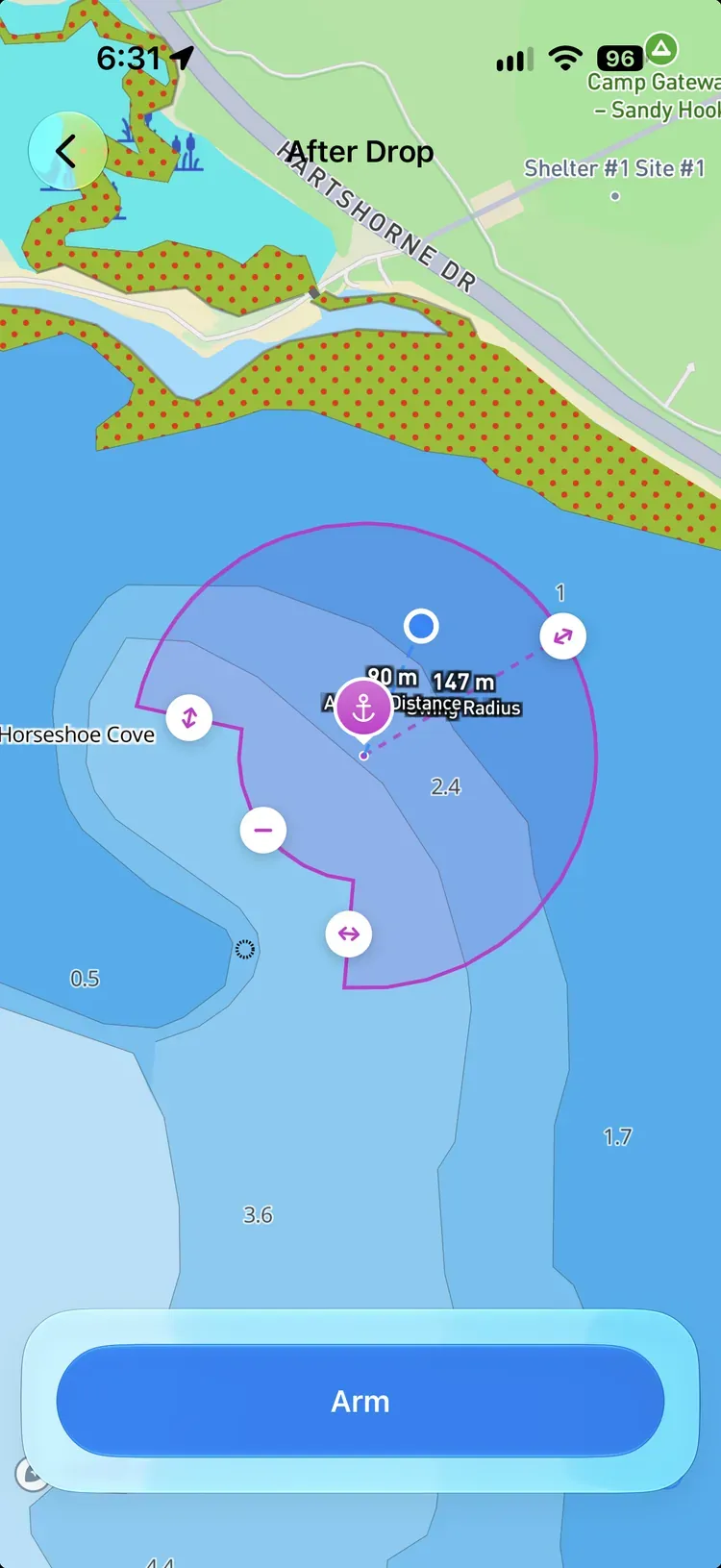
- After Drop, when the anchor is already down: start from where the boat is now.
Either way, you then see the anchor and its circle on the chart. A dotted line from the anchor to the circle’s edge shows the Swing Radius, and a dashed line from the boat to the anchor shows the Anchor Distance. Drag the anchor marker to where the anchor really is, and drag the knob on the circle’s edge (the ↔ knob) to size it; the knob follows your finger round the circle. With Live Anchoring, the circle starts at the furthest the boat fell back, plus its length and a little room. Make it big enough for the boat to swing all the way around.
Keep clear of a rock or a shoal#
If part of the circle isn’t safe, such as a rock, a shoal, or another boat’s mooring, you can cut that slice out of it. Opposite the knob you size the circle with, a dotted line runs from the anchor with a + knob half way along it. Tap that knob to add an exclusion segment there: in that slice, the safe area reaches only part of the way out from the anchor.
- Drag the ↔ knob on either edge of the slice to turn that edge, making the slice wider or narrower.
- Drag the − knob on its inner arc to set how close to the anchor the boat must stay in that direction.
- Tap the − knob to remove the segment and go back to a plain circle.
If the boat swings into the slice past its inner arc, the drag alarm sounds, just as it does when the boat leaves the circle.
Arm the watch#
Tap Arm to start watching. Before it arms, OceanPulse checks that:
- Location is allowed, with Precise Location on.
- Notifications are allowed, so alarms can sound when the device is locked.
- GPS is accurate enough to trust.
- The boat is inside the safety zone.
If anything is missing, it’s listed above Arm with how to fix it.
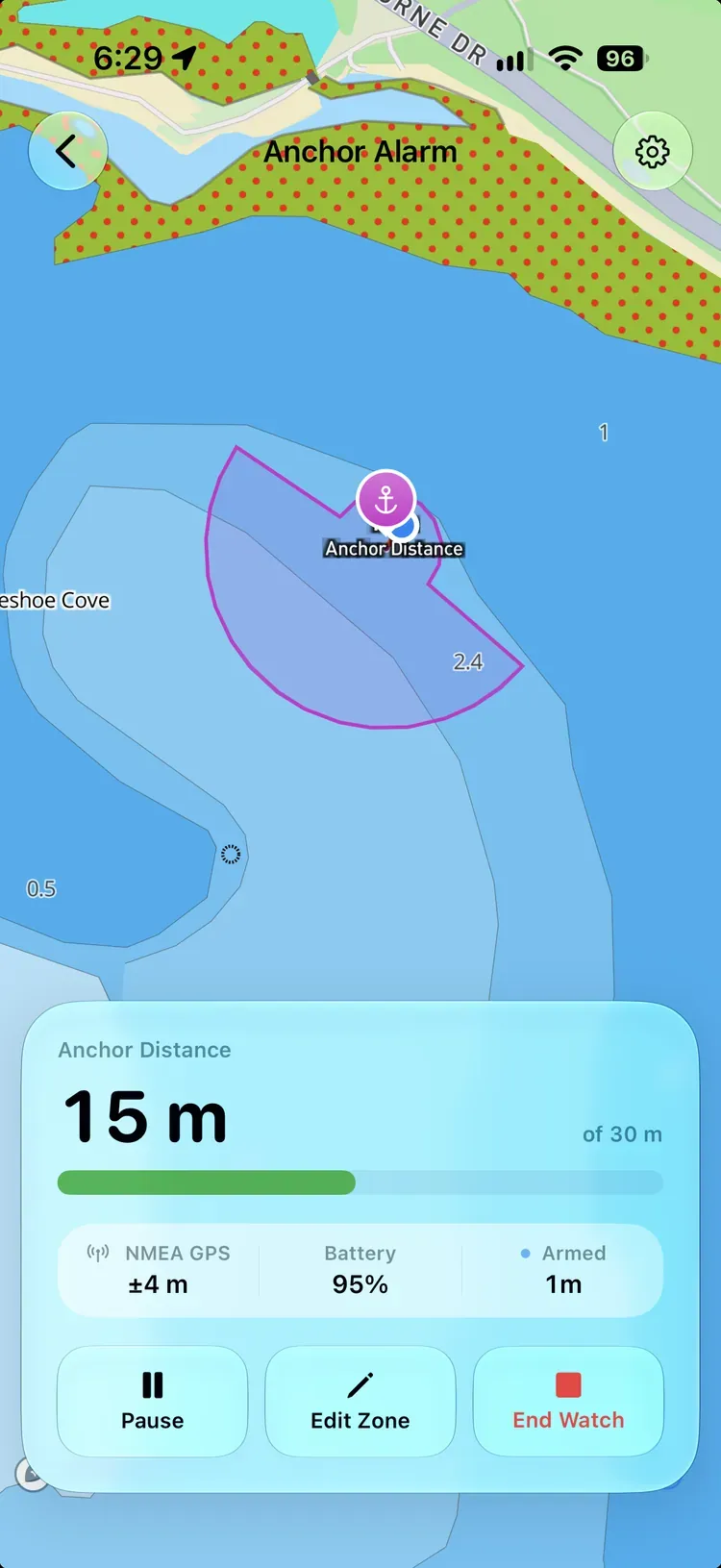
Once armed, the chart shows the anchor, the safety zone, your boat with the line to the anchor, and the last hour of its track. The card below it shows the boat’s distance from the anchor against the edge of the zone, the GPS accuracy, the battery, and how long the watch has run. Over the GPS accuracy, it says where the position comes from: Device GPS, or NMEA GPS when the boat’s own GPS is connected through NMEA Connect.
Anything that needs your attention is listed at the top of the card: an alarm sounding (in red), an alarm snoozed and until when, a paused watch, low volume, notifications turned off, weak GPS, a low battery, or a device that’s stopped reporting.
Pause the watch#
Tap Pause to stop the alarms for a while, say while you re-anchor or go for a swim off the boat. The anchor and the zone are kept, and nothing sounds until you tap Resume. You can pause and resume from the device aboard, your other devices, or a crew member’s.
Tap Edit Zone to move the anchor, resize the circle, or change the exclusion segment without stopping the watch, then tap Save. Going back without saving leaves the zone as it was; if you changed it, OceanPulse asks whether to save first.
When an alarm sounds#
The device watching sounds an alarm when:
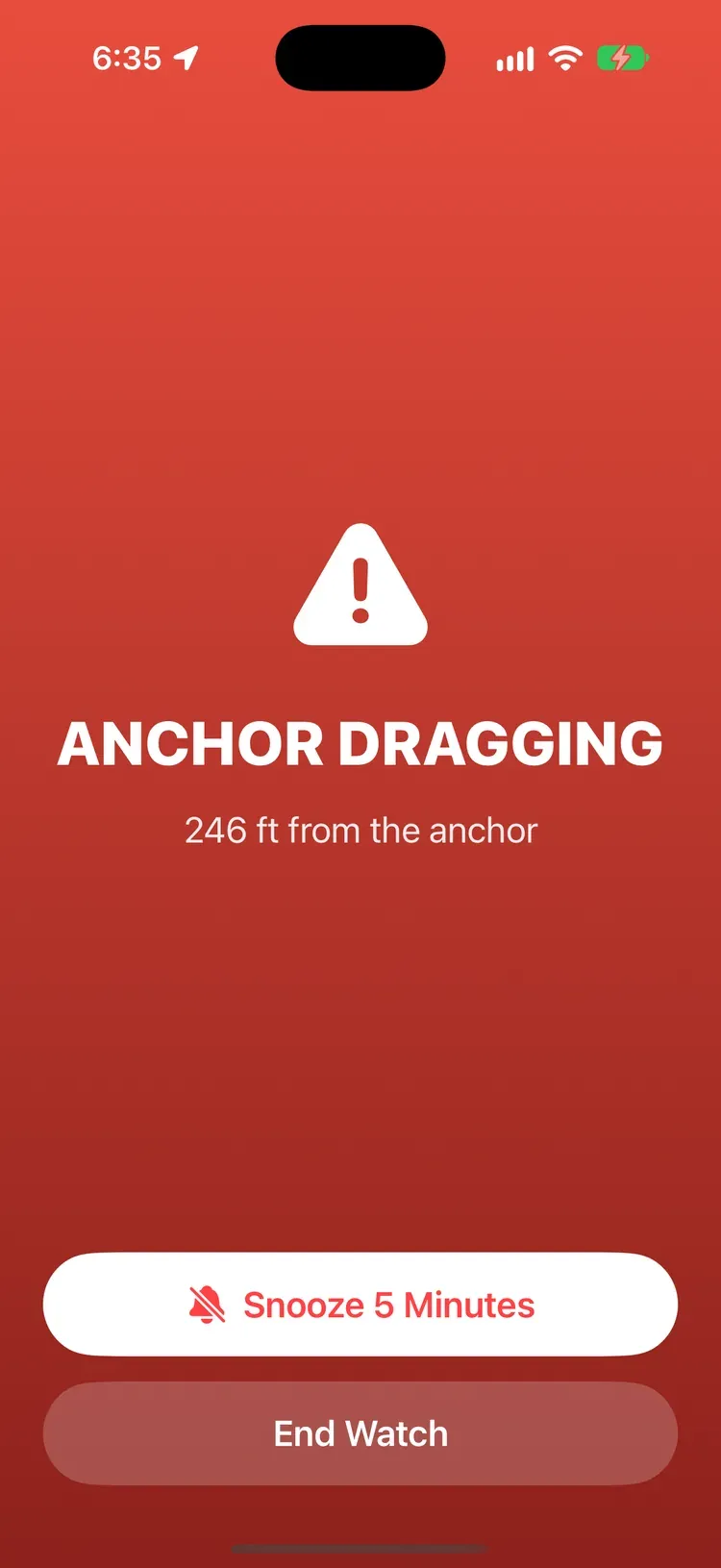
- The anchor drags. Three of the last four GPS positions are outside the safety zone: beyond the circle, or past an exclusion segment’s inner arc. One stray position never sets it off.
- GPS is lost. No accurate position for 3 minutes.
- The battery is low. Below 10% and not charging.
With the app open, the alarm fills the screen in red, saying what’s wrong and, for a drag, how far the boat is from the anchor. When the device is locked, it sounds every 30 seconds until you act. Tap Snooze 5 Minutes to quiet it while you check. If the problem is still there after 5 minutes, it sounds again. Tap End Watch, and confirm, to stop watching.
You can turn off the GPS lost and low battery alarms in Anchor Alarm’s settings (the gear, on the Anchor Alarm list or on a running watch), along with best practices for the night. The drag alarm is always on.
On your other devices#
Any other iPhone or iPad signed in to the same account can follow the watch, whether it’s in the cabin or ashore with you. Open Anchor Alarm there and the watch is listed under Following. You’ll see the boat, its track, and the circle, updated about every half minute, and every 10 seconds while an alarm sounds.
For that, the device aboard needs an internet connection: cellular, or the marina’s Wi-Fi. Without one it keeps watching and sounding on its own, but your other devices can’t see it.
When the device aboard sounds an alarm, your other devices get a notification too. From any of them you can snooze the alarm, move the anchor, resize the circle, or end the watch. Changes apply once the device aboard picks them up, usually within half a minute. Until then they show as Waiting for iPad (or whichever device is watching).
If the device aboard loses its connection, your other devices say when they last heard from it.
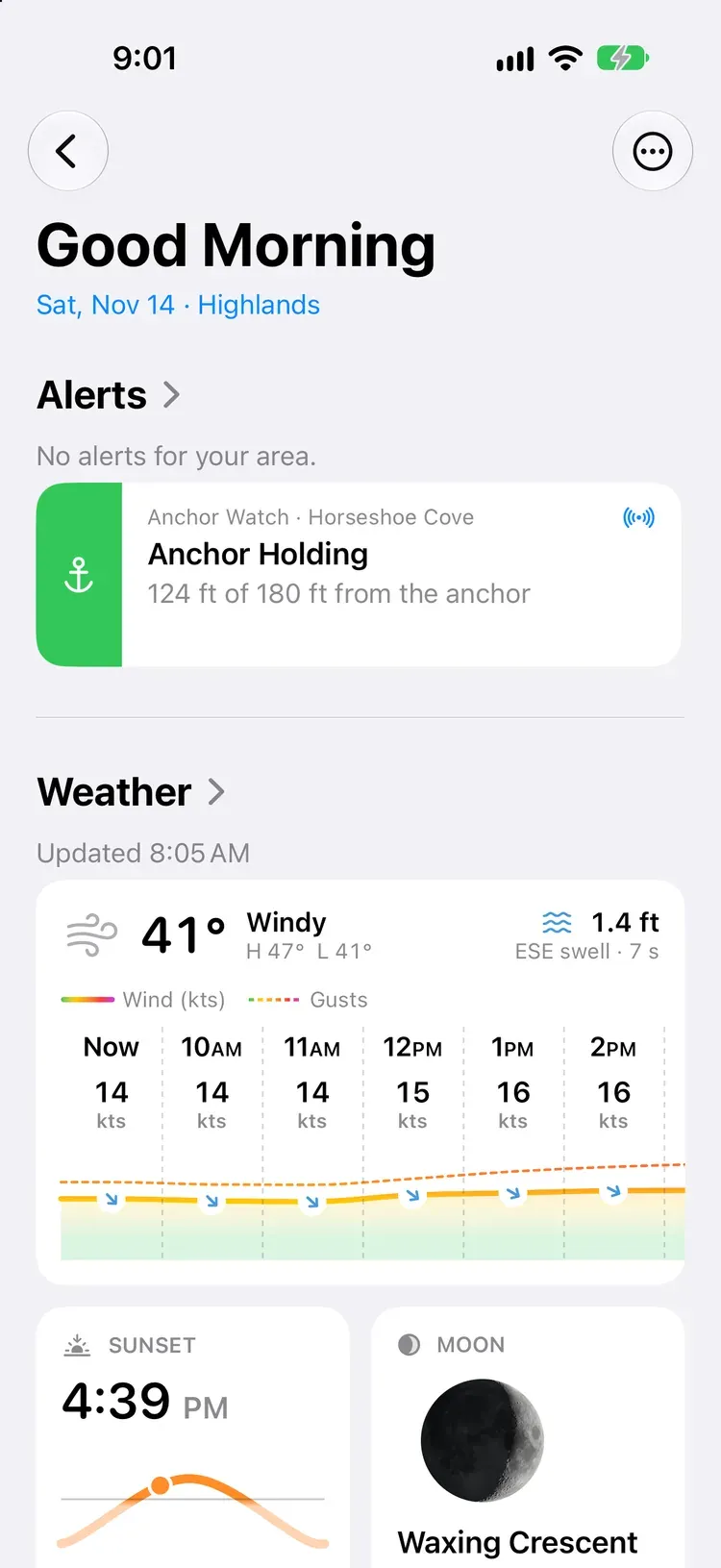
A running watch also shows on Home, under Alerts, as a tile that says how the night is going: green while all is well, orange if something needs a look (low volume, weak GPS, a device that’s stopped reporting), and red if the anchor drags. Tap it to open the watch.
Share the watch with your crew#
With Elite, you can share a running watch with anyone who has OceanPulse, on any plan, including free. They follow the boat live and get its alarms on their own device, whether they’re aboard or ashore.
To invite someone, tap the gear on the running watch and look under Share This Watch. There are three ways in:
- Scan the QR code. They point their camera at it.
- Send the link. Tap Share Invite and send it by Messages, email, or any app. Tapping it opens OceanPulse.
- Read out the code. Six characters, like K7Q-4MD.
To join, open Anchor Alarm and tap Join a Watch (on the free plan it’s under the Elite button; with Elite it’s in the settings, behind the gear). Type the code or tap Scan QR Code. OceanPulse says whose watch it is and where, and asks before joining. You need to be signed in.
Crew can do everything your other devices can: snooze an alarm, pause and resume the watch, and move the anchor or resize the zone. Only you can end the watch. Crew get Leave instead: they stop following it and stop getting its alarms, and the watch carries on. When you end the watch, it ends for everyone.
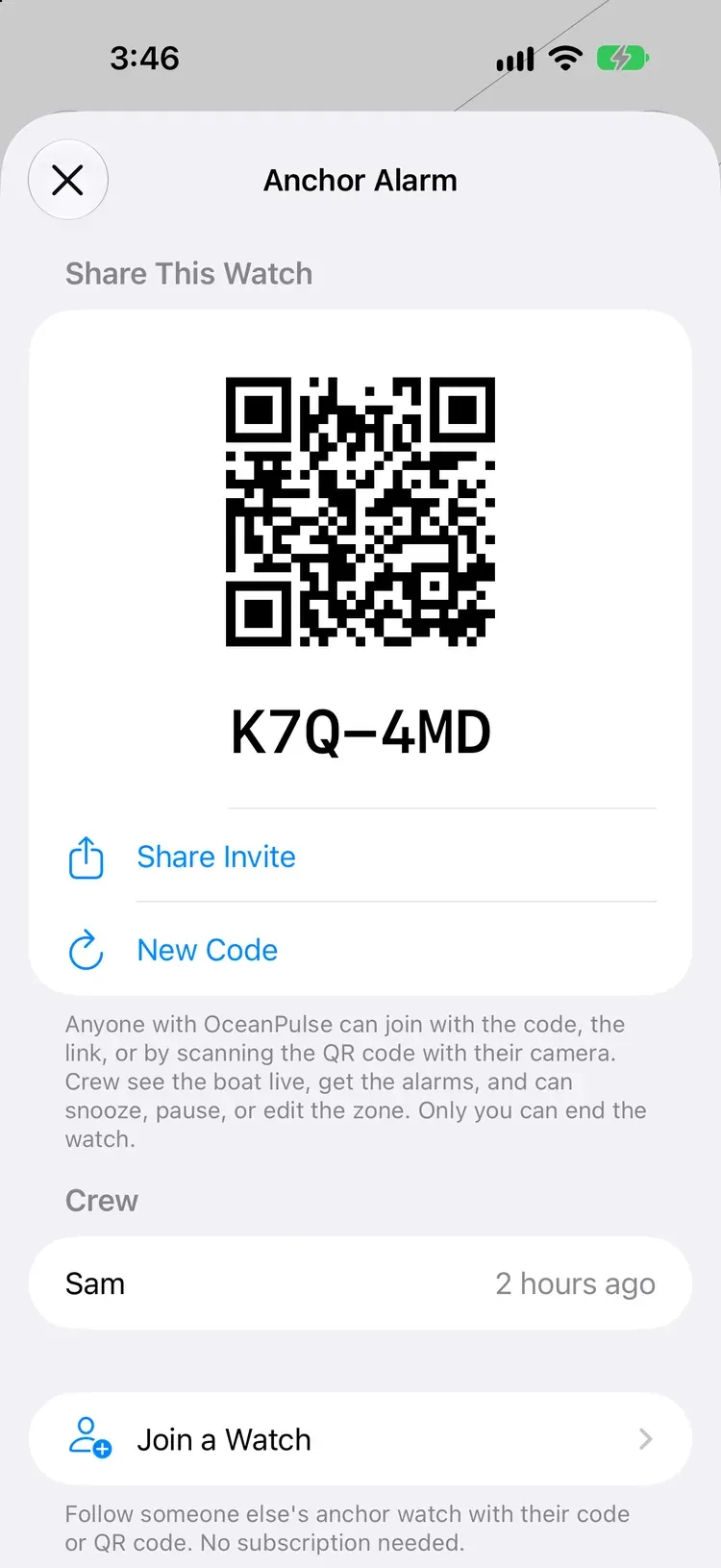
Everyone who joined is listed under Crew in the settings. Swipe a name to remove them. Tap New Code to make a new code, link, and QR code; the old ones stop working, and the crew already aboard stay.
While anyone has joined, a broadcast icon shows beside Anchor Alarm in the sidebar and on the watch’s tile on Home, the same one Tracks shows while you share a live track.
Past sessions#
End Watch saves the night to Past Sessions: where you anchored, when, for how long, and the boat’s whole track around the anchor. Past sessions sync to your other devices through iCloud.
Tips for a good night#
- Leave the app open. Force closing the app will stop the watch until you open OceanPulse again.
- Maintain a clear view of the sky. GPS quality improves with a clear view of the sky.
- Keep the device on a charger. The anchor watch needs a continuous GPS signal.
- Keep sound on and Focus modes off. OceanPulse needs these settings to alert you when the device is locked.