Forecast Alerts watches the forecast for you. Tell it the conditions you want at a spot, and it lets you know when ECMWF’s forecast matches them. It’s part of OceanPulse Pro, and it needs an account signed in with Apple or Google.
Open Forecast Alerts#
In the sidebar, under Tools, tap Forecast Alerts. On iPad the list sits beside the alert you’re looking at.
To make an alert, tap +. You can also start one from Tables & Graphs: tap the bell at the top to make an alert for the place on screen. If alerts already watch that place, the bell lists them, with New Alert at the bottom.
Set up an alert#
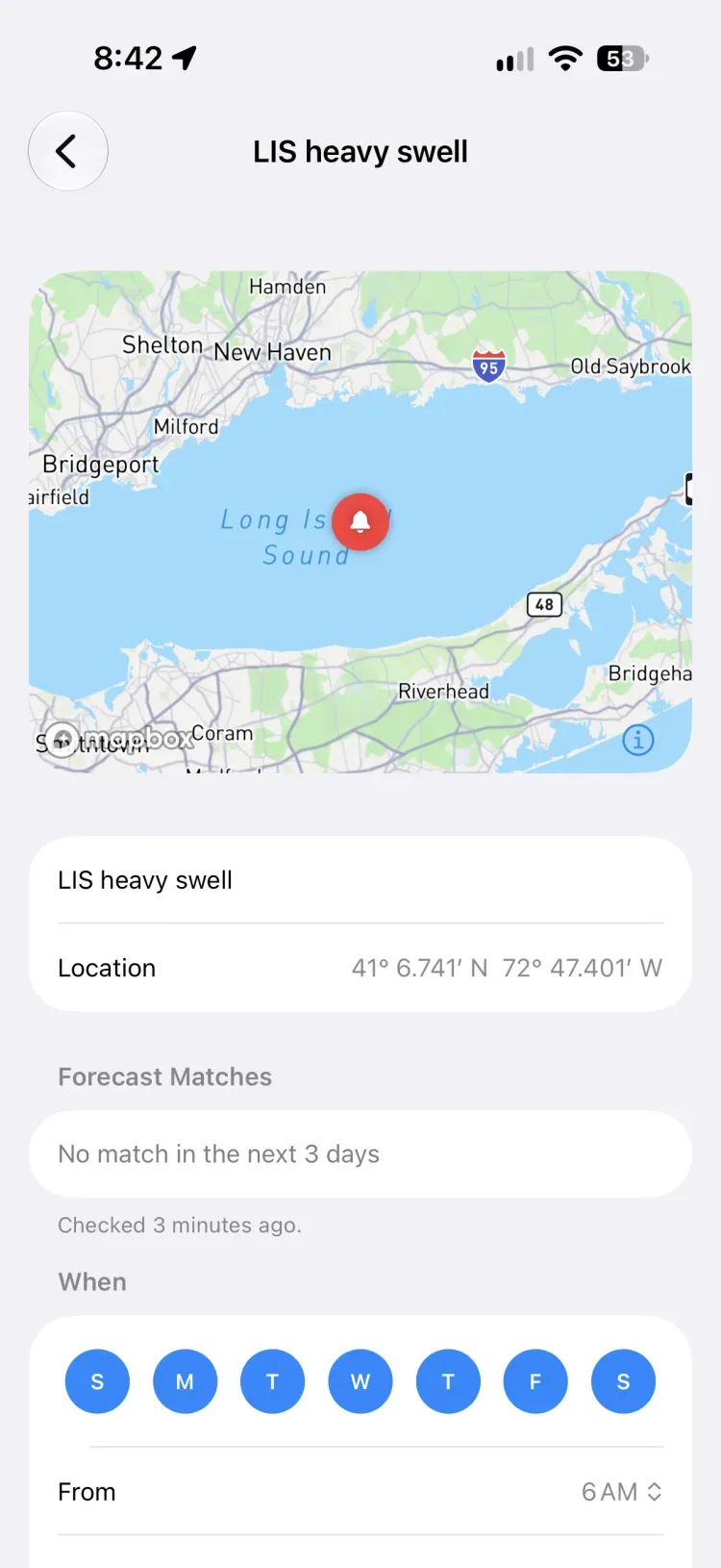
Where: the map at the top shows the spot the alert watches. Tap the map to move the pin, or tap Location to choose My Location, one of your weather places, a search result, or Choose on Map. Give the alert a Name, or leave the place’s name.
When: choose the days of the week, and the hours to watch with From and Until. Times are local to the alert’s spot, wherever you are.
- For at Least: how many hours in a row the conditions must hold: 1, 3, or 6.
- Look Ahead: how far ahead to look, from Today up to 5 days. Today counts as day one.
Conditions: turn on the ones you care about. Every condition you turn on must hold in the same hour.
| Condition | What you set |
|---|---|
| Wind | A speed range. Turn off Any Direction to choose the directions it should blow from. |
| Waves | A height range, and with Minimum Period, the shortest peak period. Uses the nearest sea within 25 km. |
| Rain | Any of None, Light, Moderate, and Heavy. |
| Cloud Cover | Any of Clear, Partly Cloudy, and Overcast. |
| Temperature | An air temperature range. |
| Pressure | A sea level pressure range. |
| Tide | A height range above chart datum, predicted at the nearest tide station within 10 NM. |
Notify Me: choose Push Notification, Email, or both. Push starts on, and OceanPulse asks for permission to send notifications the first time. Emails go to your account’s address and include a calendar event.
Tap Add (or Save). OceanPulse checks the alert straight away, so a match can notify you within a minute.
When you’re notified#
OceanPulse checks your alerts each time ECMWF publishes a new forecast. You’re notified once for each day that contains a match, and not again for that day, even when a newer forecast still matches.
- Tap a push notification to open Tables & Graphs at the spot, on the first matching hour.
- An email shows the spot on a map and the matching hours. View forecast opens the spot in OceanPulse, or in your browser on a computer.
Open an alert to see Forecast Matches: the days and hours the latest forecast matches, and when it was checked.
Your alerts#
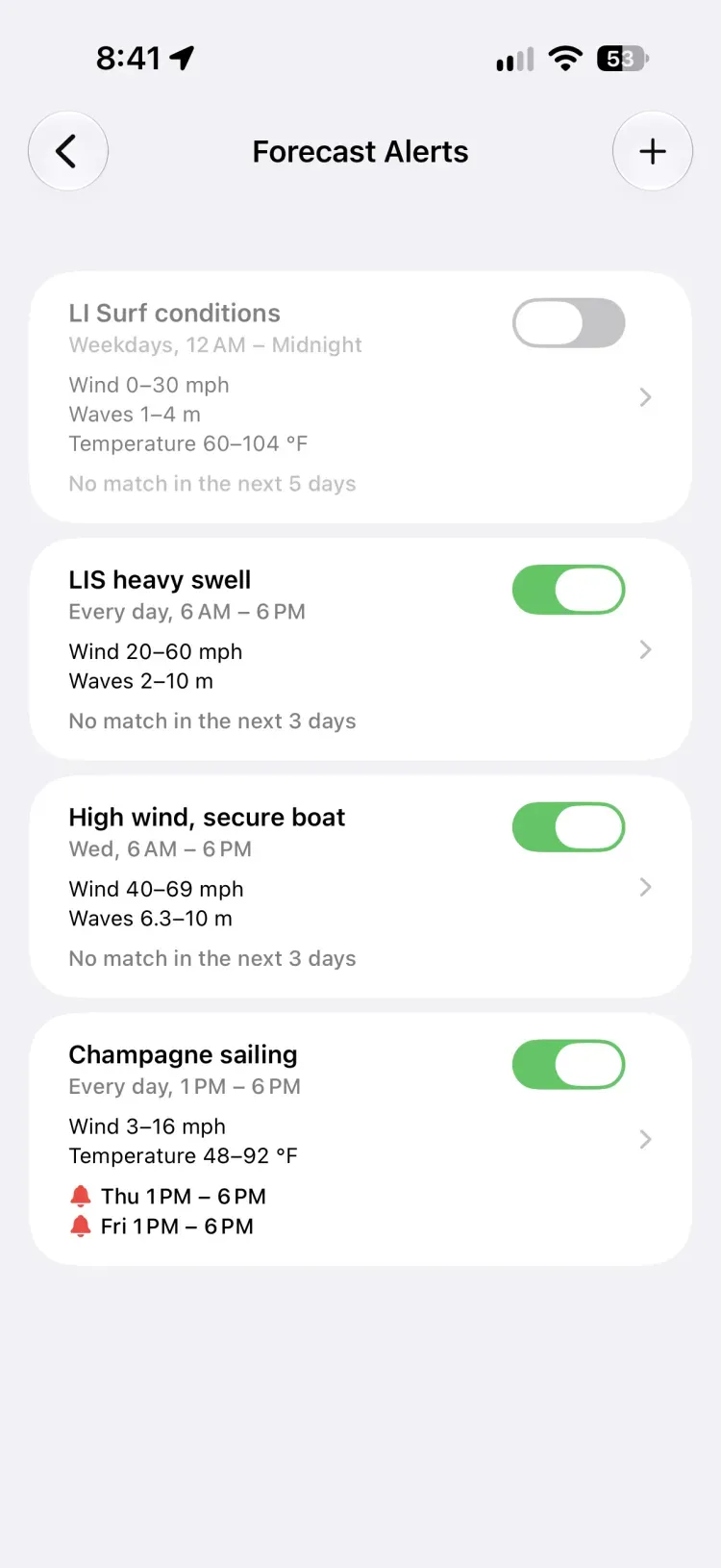
Each alert is a card with its name and schedule, a line for each condition, and a red bell line for each day the latest forecast matches.
- Switch an alert off with its switch. It keeps its settings and sends nothing until you switch it back on.
- Edit an alert by tapping it.
- Delete an alert by swiping it left, or with Delete Alert at the bottom of the alert.
You can have up to 100 alerts.
Alerts in your forecast#
Alerts show up in the forecast for any place within 2 km of an alert’s spot:
- Daily Summary and Tables & Graphs: the place’s card lists its alerts, each with a bell. The bell is red while the forecast matches, an outline when it doesn’t, and crossed out when the alert is switched off. Tap it to open the alert.
- Daily Summary: a red bell under a day means an alert matches it. Tap the bell to open the alert.
- Tables & Graphs: the Custom Alerts row shows a bell under each hour an alert matches.